

This week Microsoft Build 2024 was held. I made a blog post a few weeks ago with a top 10 list of interesting sessions from a Power Platform perspective. I’m still catching up with the sessions I outlined, but here is a post which describes some of the highlights from what I’ve seen so far.
How will AI shape your future?
This was the overall message on the event page. How will it shape our future? We got lots of good examples of just that during Microsoft Build.
No-code / Low-code / Pro-code to Copilot first development. We no longer talk about how it spans from No-code to Low-code to Pro-code, we now talk about Copilot first development. Apps as we know them is about to change, what and how we build is about to change. From being a Maker, configuring data models, building apps and setting up automation, to getting help from copilot while doing that, to working alongside of a team of copilots. Agents which can operate independently.
There were lots of futuristic messages during this year’s Build, and we got to see glimpses of what is to come and how Microsoft imagines us building solutions in the future.
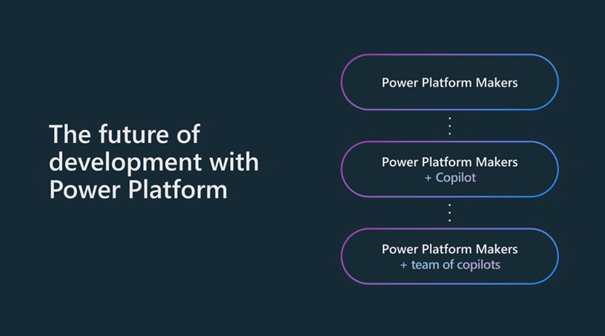
What’s a Microsoft Build event without mentioning that something has been re- imagined?! “We have been re-imagining all parts of Power Platform with Copilot”. Let that sink in and think about how AI will shape our future.
Keynotes
During the opening keynote, Microsoft Build opening keynote, it was mentioned that since last Build, Microsoft built 3 platforms; Microsoft Copilot, Copilot Stack (for us to build our own copilots) and Copilot + PC (introduced during Build). Copilot for personal use, Team Copilot and Agents were mentioned too. Team Copilot being introduced and Agents in Copilot Studio (more about those further down).
During the second keynote, Next generation AI for developers with the Microsoft Cloud, we could hear more about the Copilot Stack, which was mentioned during day 1 and then…. more deep dive into the glimpses of what’s next with AI and Power Platform (or, rather Copilot Studio deep dive).
“Last fall we introduced Copilot studio to enable you to do 2 things: easily extend Microsoft copilot and create your own copilots. Copilots has evolved from working alongside you to also working for you. The new agent capability automate tasks in the background. Copilot is so much more than a chatbot now. “
Agents. Agent capabilities. Not just copilot as in a chat bot interacting with a user. Possibilities to have different kinds of triggers, event driven triggers, e.g. an e-mails comes in, a row in Dataverse gets created or upated etc.
The Power Platform AI journey
There was one session which I was able to attend online, live, it was Shaping next-gen development: the future of Copilot in Power Platform. Lot’s of demos and interesting too hear about the past as well as the future. I like history. It gives you perspective. It gives you a better understanding of the overall picture where we are heading if you know a little about the past. Here is an overview of the Power Platform AI journey.

Here we can see the Build announcements Agent capabilities in Copilot Studio and Copilot connectors, AI flows and AI recorder for Power Automate, native Git integration for Power Apps, co-authoring, the “code view” in Power Apps and the Security workspace in Power Pages. Let’s go through some of these main new features per area.
Copilot Studio
Agent Capabilities
Copilot can work in the background. Not just as a chat bot. Set up goals, instructions, knowledge, actions and triggers. A trigger might be when something is added in a Dataverse table.

There was a sample overview which started with an e-mail coming in and then a copilot gets triggered and act as an agent.

Copilot Connectors
Possibility to connect to other services from your copilot, through Power Platform Connectors, now 1400+ connectors. Also possibility to connect to your business (Dataverse) data, productivity data though Microsoft Graph and analytics through Microsoft Fabric.


Certify your Copilot extensions. Available on Marketplace. I also heard in some session about possibility to take your Custom Connector that you have built and make a Copilot connector of it by the way.
Power Automate
We have had copilot for cloud flows and AI actions in cloud flows. AI flows and AI recorder were both announced during this year’s Build.

AI Recorder
Described as a simpler way to work with RPA and create desktop flows. Record your screen and from that, create a desktop flow.
AI flows
AI flows was introduced as follows. A set of instructions provided to an LLM (Large Language Model). Generative AI will determine the steps and sequences needed. As I understood the steps used might vary from triggering case to case. Will be interesting to have a look at this when available.
“ Will allow generative AI to achieve a result by building a flow autonomously, without requiring users to map out every process step.”
“Users describe what they want to achieve in natural language, along with any parameters for the flow.”
“Every time the flow runs, AI determines what sequence of steps and actions are required at each step to accomplish the specified goal. ”

Power Apps
There were lots of interesting announcements for Copilot 💙 Power Apps.
Comment to Power Fx formula
Similar to how GitHub Copilot works, write a comment in the Power Fx formula bar and get Power Fx formulas suggested and generated for you.

Explain this formula
This is the other way around. You see a Power Fx formula that you do not understand, then you can use the Explain this formula button.

Clicking the button will give you an explanation.

I noticed this option in one of my environment. However, clicking for an explanation (about a formula that I created in a custom page) gave me the answer that the formula was too long to understand. 🙃
Data modelling with natural language
Define what you want to build in natural language and get an ERD and data model visually available in maker portal. Use drag n’ drop in a WYSIWYG interface to add new tables and relationships to the ERD, or chat with copilot in natural language explaining what’s missing in your data model. I assume this is one part of “how we build apps is about to change”.
One thought came to my mind during one of the demos of this feature. In the end a canvas app was created. It all started with a data model. Before we used to say that model-driven apps starts with a data model and canvas apps starts with the UI. Oh well.

Code view
In several different demos we got to see the “code view” of canvas apps / custom pages. Click “View code to see” the code view.
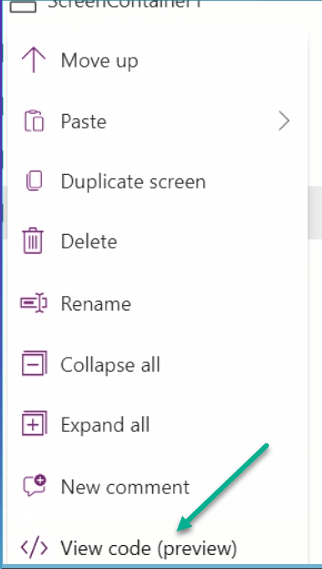
From here you have a copy code alternative. You will also see the Power Fx formulas in there. (Not any in the below picture though).
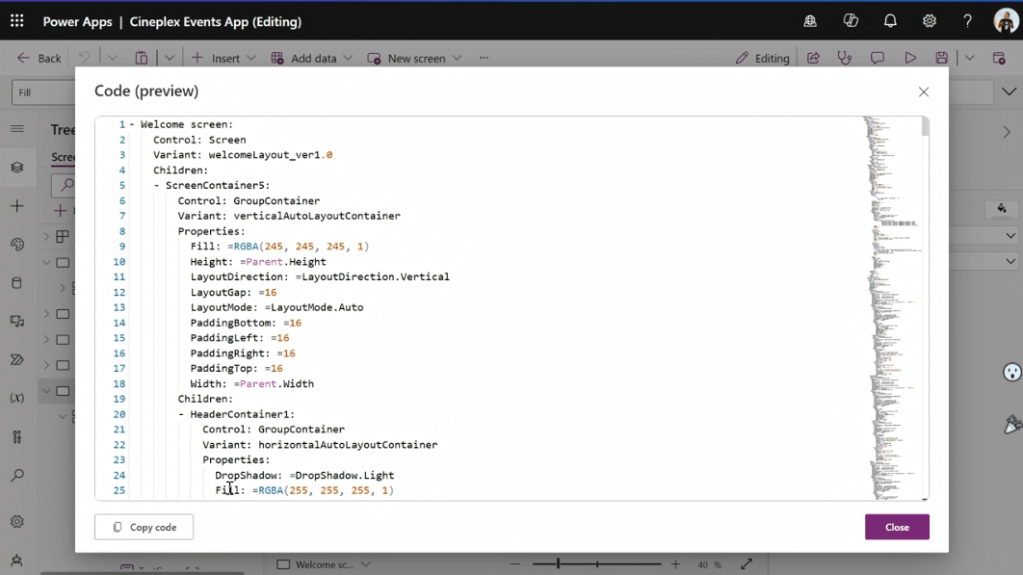
Copy paste from code into the canvas designer studio and get components created for you from the YAML code. Copy from a component to code. Very powerful!

Native source control integration was another announcement. During the session Using Power Platform to accelerate full-stack software development we could see that included in a demo.
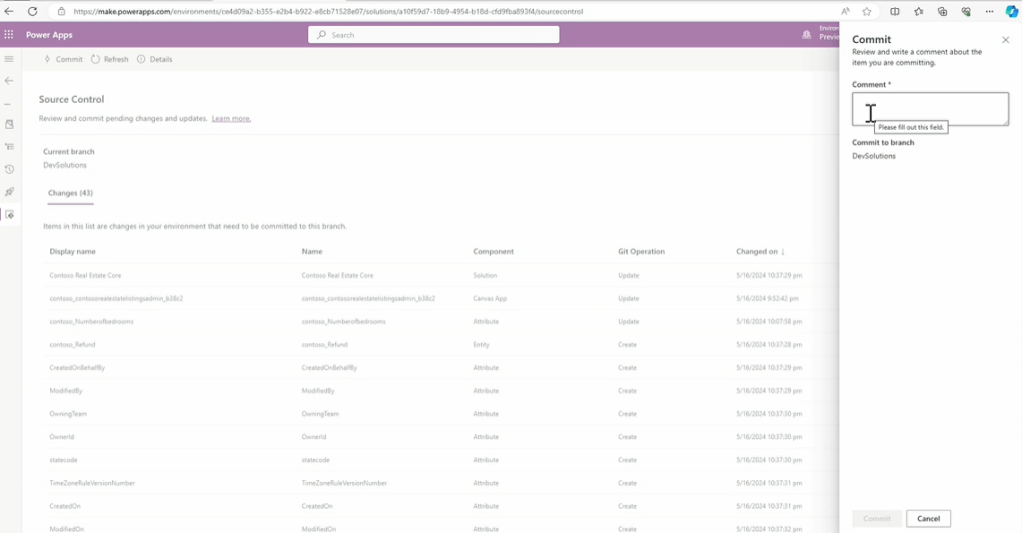
In that same session, Marcel explained how they are unlocking the mystery of the source code for canvas apps. YAY one of the announcements. Scott demoed among other things custom connectors and utilized it from Copilot Studio in a custom copilot by adding an action that uses a custom connector.
There was an unexpected start of that session by the way, Scott telling us a funny Low-Code story 🧙♂️
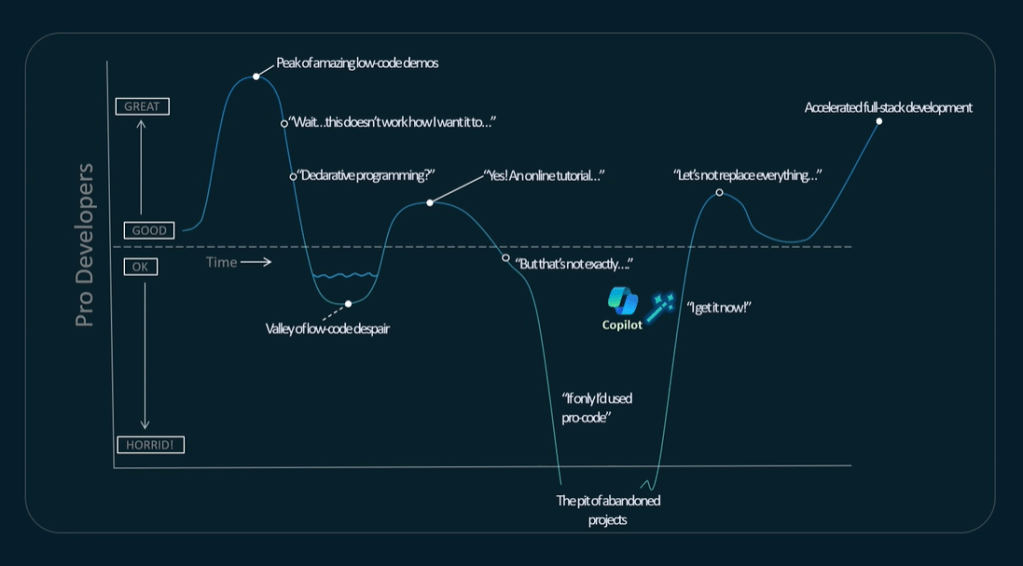
This session showcased many ways a pro-dev (can we still call it pro-dev) can utilize and extend Power Platform.
AI in model-driven apps
There were AI capabilities showcased even for model-driven apps. I liked what I heard “The same model-driven as you all know and love” but with new AI capabilities.
One of the features mentioned and demoed was how copilot can be utilized for search functionality, in an app, used by an end user. In the below example, the user is having a chat with copilot about the data.

Another model-driven app feature that was mentioned was auto-fill forms. Imaging a user creating a new row and get pre-filled data, without you as a maker/dev providing that possibility with low-code or code. Notice the “Accept all suggestions” in the top right corner.

The official blogs
As usual during Microsoft Build, the official blogs get new posts with lots of information. Here are a few of them:
- Revolutionize the way you work with automation and AI
- Power Apps is making it easier for developers to build with Microsoft Copilot and each other
- Super charge your Copilot with 6 new Copilot connector plugins along with 74 New Connectors and; 116 Connector Updates from Power Platform
- Announcing Partner Center to certify and publish Power Platform Copilot connectors and plugins
- Unlock new levels of productivity with Microsoft Dataverse and Microsoft Copilot Studio
- Microsoft Copilot Studio: Building copilots with agent capabilities
Also see the Microsoft Build 2024 Book of News!
Not ready to say goodbye to Build 2024 yet?
Sessions are available on-demand. There are several YouTube playlists to have a look at, e.g. Low-code | Microsoft Build 2024 and Copilot | Microsoft Build 2024 and the from the Session Scheduler at the event site you can watch sessions on-demand too.
A fun fact by the way, Microsoft made a Spotify playlist available, so that online attendees could get a little bit of feeling of what it was like to attend in Seattle.
Now I have lot’s of Microsoft Build sessions catch up to do. Let me know what are your highlights from this year’s Build!
Feature picture from IMDB, all other pictures from Microsoft Build.

 Carina M. Claesson
5 thoughts on “Microsoft Build 2024 Highlights”